Data Type Chooser Dialog
The Data Type Chooser Dialog allows you to choose data types in the system by typing them in or by choosing from a tree of data type managers.
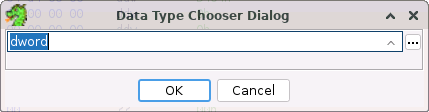
Data Type Chooser Dialog
As you type text in the field, any potential matches will be displayed in the completion window, which is described below.
The way matches are determined depends upon the search mode you are in. The current mode is displayed at the right side of the text field, indicated with a single character. Hovering over the character will show a tool tip window that shows the name for the current mode.
To change the search mode, click on the seach mode character at the right side of the text field.
You can also change the search mode using Ctrl Down and Ctrl Up to change the mode forward and backward, respectively.
Data Type Chooser Dialog
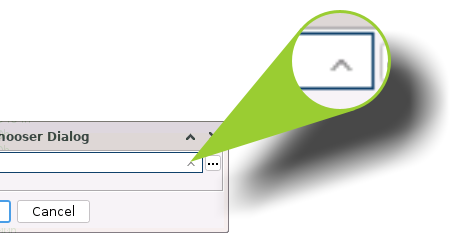
By default, this chooser uses a Starts With matching mode. Any text typed will be used to match all data type with a name that begins with the current search text.
The text used to match is based on the cursor position in the field. All text from the beginning up to the cursor position will be used for the match. This allows you to arrow left and right to control the matching list.
Completion Window
When typing in a potential data type name you will be shown a list of potential matches as you type in the completion window. The items in the list are those items that begin with the text you have entered, ignoring case.
To make a selection from the completion window, you can press the
Enterkey or double-click the item in the list. To close the completion window you can press escape.
Usage Note: If you would like to type the name of a data type to be chosen and would not like to use the selected value in the drop-down list, then you must first press the
Escapekey to close the drop-down list, if it is open. To state this point differently, pressing theEnterkey will always choose the data type selected in the drop-down list, if it is open.You can change the list of potential matches by using the left and right arrow keys to change the position of the caret within the text in the text field.
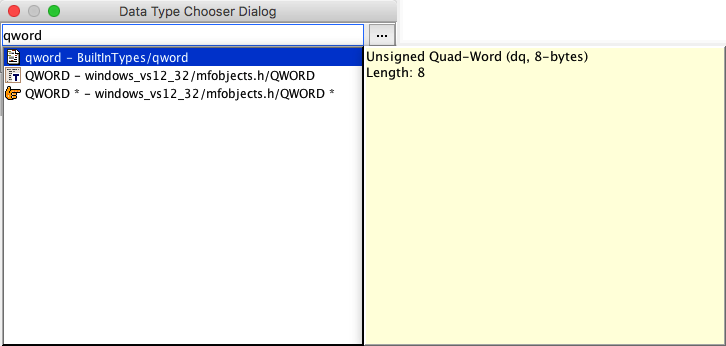
Single Potential Match
The window above shows the completion window of the Data Type Chooser Dialog when there is only one potential match.
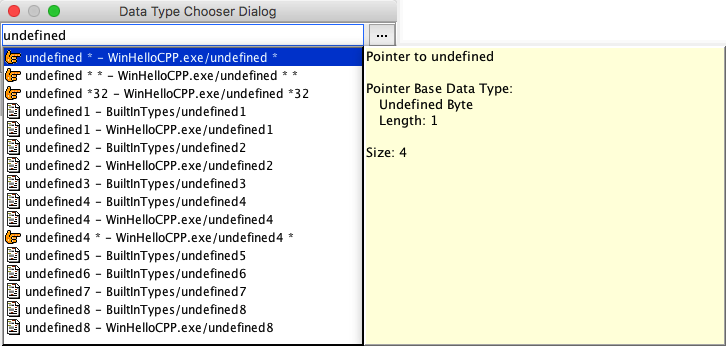
Multiple Potential Matches
The window above shows the completion window of the Data Type Chooser Dialog when there multiple potential matches are found.
Creating Pointers and Arrays
You can make a pointer or an array out of an existing data type. You do this by appending the correct characters to an existing data type name. For example, you can create a
wordpointer by appending an '*' to the text "word" in the text field of the Data Type Chooser Dialog, as in the picture below.
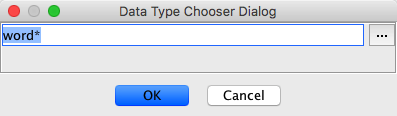
Create a Pointer Type
The easiest way to create a new pointer or array is to type the beginning of the name of the desired data type and then to select that data type from the list of matches in the completion window. Once the name of the data type is entered into the text field, then you can type a '
*' or '[number]' for a pointer or an array respectively.
Data Type Browser
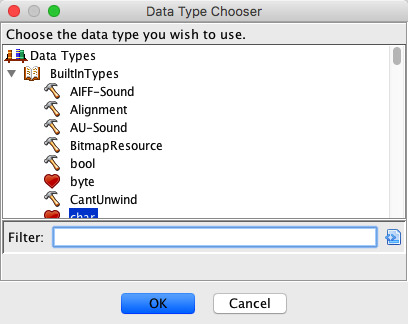
Data Type Browse Tree
You can see the Data Type Chooser tree window by pressing the browse button on the Data Type Chooser Dialog (this is the button with the text "..."). From this dialog you can navigate the various open data type managers in the system to find a specific data type. This is helpful if you do not remember a data type's name, but you do remember its storage location.